What Is the 365 Market Charge on Your Bank Statement?
Finding an unexpected charge on your bank statement can be unsettling. A quick scan of your recent transactions might reveal names you don’t recognize, leading to questions and concerns about potential fraud. One such charge that often causes confusion is labeled “365 Market.” While it may look unfamiliar, it’s usually a legitimate purchase from a place you visit frequently.
What Is 365 Market?
365 Market is a company that provides self-checkout technology for a variety of unattended retail spaces. Think of them as the operating system behind many modern vending machines, micro-markets, and self-serve kiosks. You will most likely find their systems in workplace cafeterias, office break rooms, apartment building lobbies, and fitness centers. They allow you to quickly grab a snack, a drink, or a full meal and pay without interacting with a cashier.
Why Does the 365 Market Charge Appear on Your Statement?
The charge shows up whenever you make a purchase from a kiosk or vending machine that uses their payment system. Common examples include grabbing a coffee before work, buying a sandwich for lunch, or picking up a snack at your gym.
When you pay with your card or mobile wallet, the transaction is processed under 365 Market’s platform. Since they are the payment processor, their name is what appears on your bank statement—not the name of your office cafeteria or gym. This is similar to how other third-party processors may appear differently on your statement, just like an unfamiliar entry such as SQ on a bank statement or an LPS charge.
Is the 365 Market Charge Legitimate?
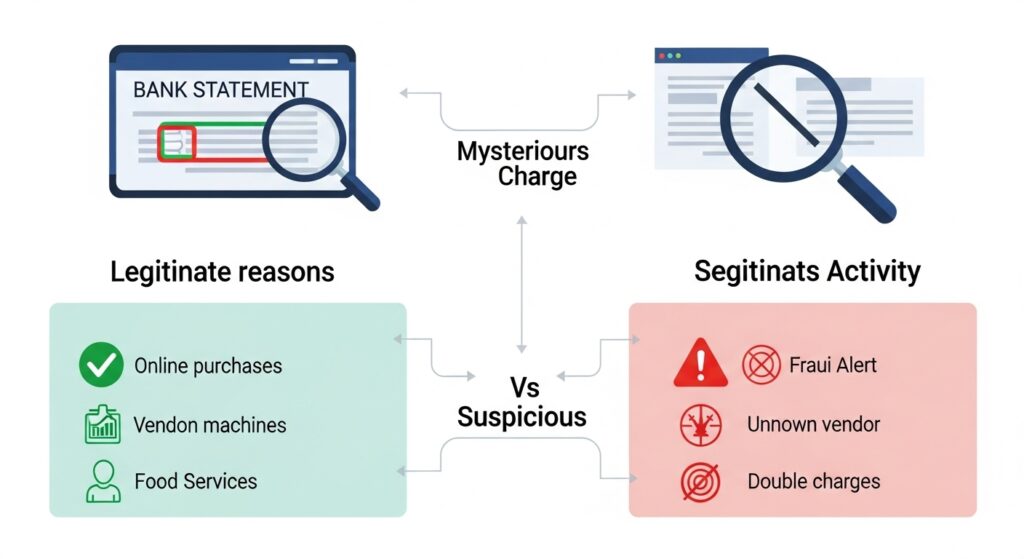
Most of the time, a 365 Market charge is valid. It’s easy to forget routine purchases, especially when they’re small and fast, like a $3 drink or a $7 salad. Because kiosks are designed for convenience, you may not immediately connect the charge when reviewing your statement later.
The same confusion often happens with other charges, like an Infinite Loop entry or an Ikano Bank charge, which look unusual but usually have straightforward explanations once you track the purchase.
How to Verify the Charge
If you see a 365 Market charge and want to be sure it’s yours, a few simple steps can help you confirm it.
- Check Your Recent Activity: Think back over the last few days. Did you buy anything from a self-serve kiosk at work, your gym, or another location? The amount and date of the charge should align with your purchase.
- Look for Receipts: While most kiosks are paperless, many offer to email you a receipt. Check your inbox for any transaction confirmations from 365 Market.
- Ask Your HR Department or Office Admin: If the kiosk is at your workplace, your HR department or office administrator can confirm if the company uses 365 Market for its break room or cafeteria services.
- Contact 365 Market: If you’re still unsure, you can reach out to 365 Market’s customer support. They can help you identify the location of the purchase if you provide them with the transaction details.
What to Do If You Don’t Recognize the Charge
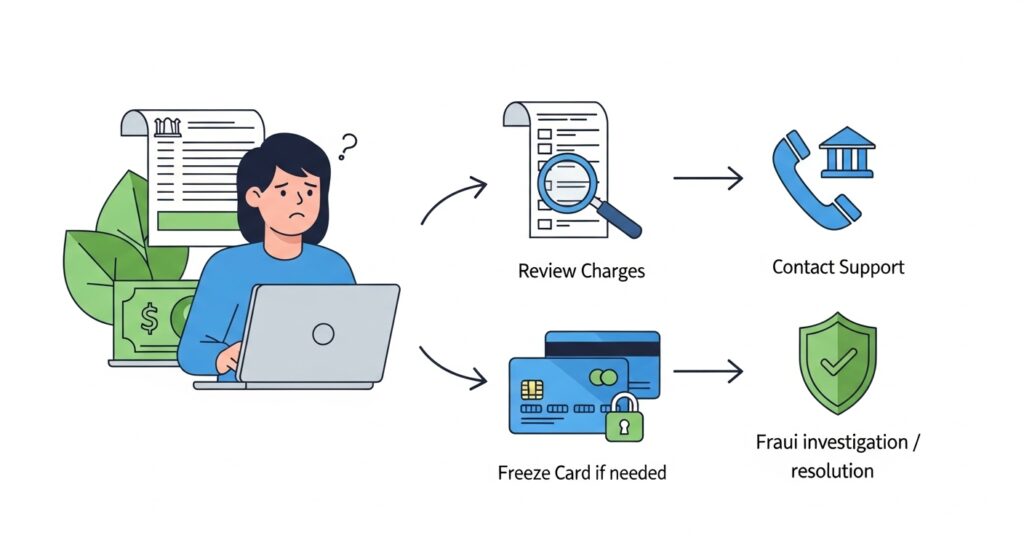
If you have tried the steps above and are certain the charge is not yours, it’s important to act quickly.
- Contact Your Bank: Call the customer service number on the back of your debit or credit card. Inform them about the unrecognized charge and let them know you believe it may be fraudulent.
- Dispute the Charge: Your bank will guide you through the process of disputing the transaction. They will likely issue a temporary credit while they investigate the claim.
- Report Potential Fraud: The bank will handle the fraud investigation, which may include canceling your current card and issuing a new one to prevent further unauthorized charges.
This process is similar to handling other unfamiliar billing entries like the PNP BillPayment charge, which also requires verification and quick action if you suspect fraud.
How to Avoid Confusion in the Future
A little organization can help you keep track of your purchases and avoid the stress of an unknown charge.
- Track Small Purchases: Make a habit of noting down small, daily expenses. You can use a notebook or a simple budgeting app on your phone.
- Set Up Transaction Alerts: Many banking apps allow you to set up real-time alerts for every transaction. This way, you’ll be notified immediately after a purchase is made.
- Opt for E-Receipts: When a kiosk offers an email receipt, take a moment to enter your email address. Having a digital paper trail makes it much easier to cross-reference charges later.
Staying organized helps you avoid the stress of unrecognized charges. You can track small daily expenses with a budgeting app, set up transaction alerts through your bank, or opt for e-receipts when available.
These small steps not only make it easier to confirm 365 Market purchases but also keep you prepared for any unusual activity on your statement. And if you’re looking to manage finances more effectively, tools like the FintechZoom best credit cards guide can help you choose cards that offer better rewards and fraud protection.
Conclusion
Seeing “365 Market” on your bank statement can be confusing, but it usually just means you bought something from a self-serve kiosk, most likely at your workplace. While these charges are typically legitimate, it’s always wise to verify any transaction you don’t immediately recognize. By taking a moment to confirm the purchase, you can ensure your account is secure and enjoy the convenience these modern markets offer with complete peace of mind.